Check the screen you are expecting it on
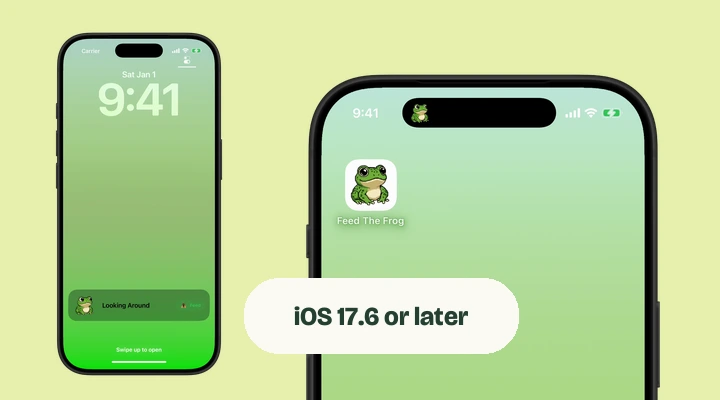
A phone with a notch cannot display the Dynamic Island version. On iPhone Duo, look along the side of the display for the vertical Island. Feed The Frog can also show a Lock Screen Live Activity on an iPhone that meets its iOS 17.6 requirement. Lock your phone, wake the screen, and check there before changing other settings.
If you do have a Dynamic Island, another activity may be sharing its space. Music, a timer, navigation, or a call can change the presentation. Touch and hold the visible activity to expand it. The compatibility guide explains the difference between app support and Island hardware.
Check both switches
- Open Feed The Frog and turn on its Dynamic Island switch.
- Open iPhone Settings and find Feed The Frog. On recent iOS versions it is under Apps.
- Open Live Activities and check that they are allowed for the app.
- Return to Feed The Frog, then go back to the Home Screen.
If you previously dismissed the Live Activity, reopening the app can restore the wanted session. If needed, turn the app’s switch off and on to request a fresh activity.
An old session may have ended
Apple limits how long a Live Activity can stay active. The documented maximum is eight hours. After that, it leaves the Dynamic Island, although an ended presentation can remain on the Lock Screen for a while.
That limit means a frog that was present earlier can be missing later without a crash or lost progress. Open Feed The Frog when you want to begin another session. Keeping the app running on screen all day is not a requirement for the Live Activity experience.
Separate animation access from visibility
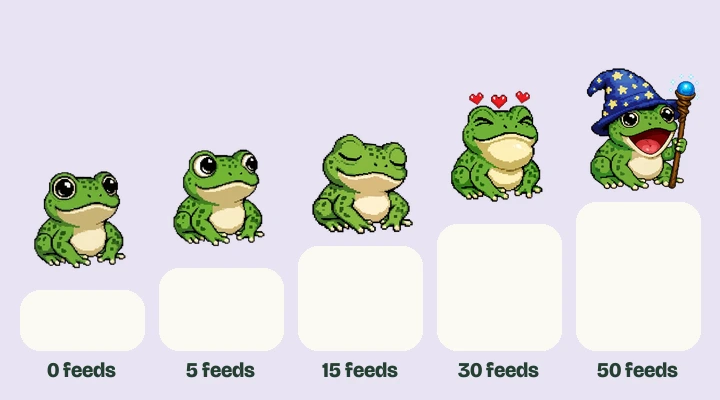
If you can see Blinking but cannot keep Wizard Staff selected, the Live Activity itself is working. Check the animation’s feeding milestone and premium requirement. Sleeping, Catching Fly, and Wizard Staff require both before they can be selected for Live Activities.
Restore Purchases can help if you bought All Frog Packs with the same Apple Account and the premium animations are still locked. It does not add feeds or skip progress milestones. Our unlock guide has the complete table.
A still frog is a different issue
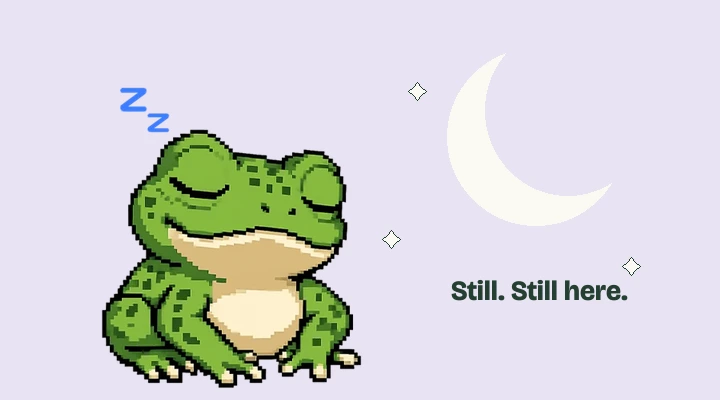
A frog that stops moving only when the Always-On Display dims is behaving as expected. iOS suppresses animation in that low-power display state. Wake the screen and compare the result before treating it as a missing activity.
If the frog is still absent, check for an app update and restart the iPhone. Avoid deleting the app as a first troubleshooting step: progress is stored locally. For help, email [email protected] with your iPhone model, iOS version, app version, and which screen is affected. A screenshot can help describe what you see.
More about iPhone features
Say hello to your frog.
Try the preview, then bring a little company to your iPhone.
Download on theApp Store